Favicon Generator - Create All Sizes Free
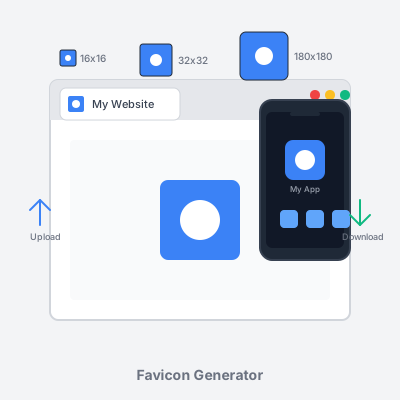
Generate all required favicon sizes from a single image upload. Create 16x16, 32x32, 48x48, 180x180, 192x192, and 512x512 pixel favicons for browsers, iOS, Android, and PWA. Free online tool with instant preview, customization options (background color, padding, border radius), and ready-to-use HTML code. No registration required—upload, customize, and download instantly.
Create Professional Favicons in Seconds
What is a Favicon?
A favicon (short for “favorite icon”) is a small icon that represents your website across browsers, mobile devices, and bookmarks. Favicons appear in:
- Browser tabs: The tiny icon next to your page title in Chrome, Firefox, Safari, Edge, and other browsers
- Bookmarks/Favorites: Visual identifier when users save your site for later
- Address bars: Some browsers display favicons in the URL bar for added visual context
- Mobile home screens: iOS and Android show your favicon when users add your website as a home screen shortcut
- Browser history: Helps users find your site in their browsing history
- Tab search: Makes your site identifiable when users search through open tabs
Why favicons matter:
- Brand recognition: Users identify your site instantly in crowded tab bars with 20+ open tabs
- Professionalism: Missing favicons make websites appear incomplete, unpolished, or untrustworthy
- User experience: Visual markers improve navigation—users locate your tab faster among dozens of open tabs
- Bookmarking: Distinctive favicons encourage users to save your site and help them find it later
- Mobile web apps: iOS and Android use favicons as app icons when users install Progressive Web Apps (PWA)
Technical requirements:
Modern websites need multiple favicon sizes to support different devices and display contexts. Browsers request specific sizes: 16x16px for standard tabs, 32x32px for Retina displays, 48x48px for Windows taskbar, 180x180px for Apple Touch Icons, and 192x192px + 512x512px for Android Chrome and PWA. This tool generates all required sizes from a single uploaded image, ensuring pixel-perfect display across all platforms.
How to Use This Favicon Generator
Follow these simple steps to create professional favicons for your website:
Step 1: Upload your image
Click the upload area or drag-and-drop your logo, icon, or image. Supported formats: PNG, JPG, SVG. Recommended source image size: 512x512 pixels or larger (higher resolution = sharper favicons). Use square images (1:1 aspect ratio) for best results—rectangular images will be cropped.
Step 2: Customize appearance
- Background color: Choose a solid color background or transparent. Transparent works best for simple icon logos. Solid colors help text-based logos stand out.
- Padding: Add space around your image (0-30%). Prevents edge-clipping at small sizes. Useful when your logo extends to image edges.
- Border radius: Round the corners (0-50%). 50% creates a perfect circle. Match your brand’s design language (sharp corners vs. rounded).
Preview updates in real-time as you adjust settings. Check the 16x16px preview—if your design isn’t recognizable at that size, simplify your source image.
Step 3: Preview all sizes
Review generated favicons in the preview grid. Each size is displayed exactly as it will appear on devices:
- 16x16px: Browser tabs (most common viewing size)
- 32x32px: Retina displays and Windows taskbar
- 48x48px: Windows site icons
- 180x180px: Apple Touch Icon (iOS home screen)
- 192x192px & 512x512px: Android Chrome and PWA
The “Browser Tab Preview” shows how your 16x16px favicon appears in an actual browser tab with page title.
Step 4: Download favicons
- Download All (ZIP): Downloads all six favicon sizes as individual PNG files (downloads sequentially with short delays between files)
- Individual downloads: Click any size button to download that specific favicon only
- Bulk download tip: Use “Download All” for complete favicon packages ready to upload to your server
Step 5: Copy HTML code
Click “Copy” to copy the ready-to-use HTML code snippet. Paste this code into your website’s <head> section (between <head> and </head> tags). The code includes <link> tags for all favicon sizes with correct rel attributes and size specifications.
Step 6: Upload to your website
Place downloaded PNG files in your website’s root directory (same folder as index.html). Standard file locations: /favicon-32x32.png, /favicon-16x16.png, /apple-touch-icon.png, etc. Alternatively, create a /favicons/ folder and update HTML href paths accordingly.
Step 7: Test and verify
Hard refresh your browser (Ctrl+Shift+R on Windows, Cmd+Shift+R on Mac) to clear cached favicons. Check your site in multiple browsers: Chrome, Firefox, Safari, Edge. Test on mobile devices: iOS Safari (add to home screen), Android Chrome. Verify favicon appears in tabs, bookmarks, and address bar.
Favicon Size Requirements by Platform
Different browsers and devices require specific favicon sizes. This tool generates all essential sizes automatically:
Browser favicons (desktop)
- 16x16 pixels: Standard favicon for browser tabs, address bars, and bookmarks. Displayed in Chrome, Firefox, Safari, Edge, Opera tabs. Must be simple enough to recognize at this tiny size (256 total pixels). Focus on brand colors and basic shapes—intricate details disappear.
- 32x32 pixels: Retina display favicon for high-DPI screens (MacBooks, 4K monitors). Also used in Windows taskbar for pinned websites. Provides sharper, crisper icons on modern displays. Allows slightly more detail than 16x16px version.
- 48x48 pixels: Windows site icons and taskbar previews. Displayed in Windows taskbar when sites are pinned. Also appears in Windows site tile previews and some Windows UI contexts. More detail visible at this size.
iOS favicons (Apple devices)
- 180x180 pixels: Apple Touch Icon for iPhone and iPad. Displayed when users add your website to their iOS home screen via Safari’s “Add to Home Screen” feature. iOS automatically applies rounded corners (no need to round your image). Also used in Spotlight search results and Safari tab previews. Replaced older 152x152px and 120x120px sizes (iOS 8+). Design tip: Leave 10-15% padding around important elements—iOS corner rounding crops edges.
Android favicons (Chrome & PWA)
- 192x192 pixels: Standard Android Chrome icon. Used when Android users add your site to home screen. Also displayed in Chrome’s “Add to Home Screen” prompt. Specified in Web App Manifest (
site.webmanifest) for Progressive Web Apps. Android shows full square icon (no automatic corner rounding like iOS). - 512x512 pixels: High-resolution Android icon for PWA and app launchers. Displayed in Android app launchers, splash screens, and PWA install prompts. Future-proofs for higher-DPI devices and larger display contexts. Required for Progressive Web App compliance (Google Lighthouse checks for 512x512 icon). Also used in Google Play Store if you convert PWA to native app.
Legacy formats (optional)
- ICO format: Multi-size ICO file (16x16, 32x32, 48x48 in one file) for legacy Internet Explorer support. Modern browsers support PNG favicons, so ICO is rarely needed in 2026. This tool focuses on PNG output (better compression, smaller file sizes, universal modern browser support).
Coverage summary:
These six sizes (16x16, 32x32, 48x48, 180x180, 192x192, 512x512) cover 99%+ of real-world use cases across desktop browsers, mobile browsers, iOS, Android, and Progressive Web Apps. Additional sizes exist for niche cases (270x270px for Windows Live Tiles, 196x196px for Opera Speed Dial), but the six generated by this tool satisfy virtually all scenarios.
Favicon Design Best Practices
Creating effective favicons requires balancing brand identity with technical constraints:
1. Start with simplicity
Favicons are displayed at tiny sizes (16x16px = 256 pixels total). Complex logos with intricate details become unrecognizable blurs. Simplify your design: Use 1-3 colors maximum (avoid gradients—they muddy at small sizes). Focus on basic geometric shapes (circles, squares, triangles, simple letterforms). Remove all unnecessary details (taglines, decorative elements, complex illustrations). Extract the most distinctive element of your brand (Nike swoosh, not full logo with text).
2. Maximize contrast
High contrast ensures visibility across different browser themes and backgrounds. Choose contrasting color combinations: Dark blue on white, black on yellow, white on dark red. Avoid similar shades (light gray on white disappears, dark gray on black becomes invisible). Test your favicon on both light backgrounds (default Chrome) and dark backgrounds (dark mode browsers). Add solid background if your logo uses light colors that vanish on light tabs.
3. Keep it square
Favicons are displayed as squares (1:1 aspect ratio) across all platforms. Rectangular logos will be cropped or distorted. If your logo isn’t square, add transparent or colored padding to create square format before uploading. Centered logos with equal padding on all sides ensure consistent display.
4. Use bold, thick lines
Thin lines (1-2px at source size) disappear when scaled to 16x16px. Use thick, bold lines—minimum 3-4px thickness at source image size (512x512px). Bold shapes remain recognizable at small sizes. Avoid delicate, intricate linework (save for print materials).
5. Test at 16x16 pixels
Your 16x16px favicon is the most-viewed size (browser tabs). Use this tool’s preview to verify recognizability at 16x16px. If details are indistinguishable, simplify further. View favicon from arm’s length—if you can’t identify it, users won’t either. Consider creating a dedicated favicon-specific logo variant (many brands maintain separate full logo and simplified icon versions).
6. Maintain brand consistency
Favicons should be instantly recognizable as your brand. Use brand colors consistently (exact hex codes from brand guidelines). Match visual style to your website design (modern, playful, professional, minimalist). Ensure favicon aligns with logo, website design, and other brand touchpoints (app icons, social media profile images).
7. Avoid text (usually)
Full text is unreadable at 16x16px (letters collapse into unrecognizable pixels). If you must use text, limit to 1-2 characters (brand initials: IBM, HBO, CNN). Use bold, sans-serif fonts (Helvetica Bold, Arial Black, Roboto Bold). Increase letter spacing and size for maximum legibility. Add solid background behind text for contrast. Better approach: Use icon version of logo instead of text wordmark.
8. Consider transparency wisely
Transparent backgrounds work for simple icon logos (Apple logo, Nike swoosh, Twitter bird). However, transparency can backfire: Very light logos (white, pale yellow) disappear on light browser backgrounds. Complex transparent shapes may show artifacts or aliasing at small sizes. For maximum compatibility, solid background often works better—test both options in this tool.
9. Add padding
Edge-to-edge logos may get clipped at small sizes or when browsers add effects. Use this tool’s padding slider to add 5-15% space around your logo. Prevents important elements from touching edges (especially important for iOS, which applies corner rounding). Creates breathing room, improving visual clarity at small sizes.
10. Future-proof with SVG source
If you have an SVG version of your logo, upload it to this tool. SVG is vector-based, maintaining perfect quality when scaled to any size. Generates sharper favicons than upscaling small raster images. However, note that browsers don’t support SVG favicons directly—this tool converts SVG to required PNG sizes.
Progressive Web App (PWA) Favicons
Progressive Web Apps use favicons as app icons when users install your website to their device home screen. PWA favicons have specific requirements:
PWA icon requirements
- Sizes: 192x192px (standard) and 512x512px (high-resolution) required for PWA compliance
- Format: PNG files (JPEG not recommended—transparency support needed)
- Manifest: Icons must be declared in Web App Manifest (
site.webmanifest) JSON file - Purpose: Specify purpose as “any” (default) or “maskable” for adaptive icons with safe zones
Creating a Web App Manifest
After generating favicons with this tool, create a site.webmanifest file:
{
  "name": "Your Website Name",
  "short_name": "Short Name",
  "icons": [
    {
      "src": "/android-chrome-192x192.png",
      "sizes": "192x192",
      "type": "image/png"
    },
    {
      "src": "/android-chrome-512x512.png",
      "sizes": "512x512",
      "type": "image/png"
    }
  ],
  "theme_color": "#ffffff",
  "background_color": "#ffffff",
  "display": "standalone"
}
Link manifest in your HTML <head>:
<link rel="manifest" href="/site.webmanifest">
Maskable icons (advanced)
Android adaptive icons use “maskable” specification, allowing different shapes (circle, squircle, rounded square) based on device manufacturer. Maskable icons require 20% safe zone padding on all sides (important content must stay within central 80%). This tool’s padding slider helps create maskable-compliant icons—set padding to 20% for full safety.
Testing PWA favicons
- Add manifest to your website
- Install PWA on Android device via Chrome’s “Install app” prompt
- Verify icon appears correctly on home screen
- Check icon in app launcher and multitasking view
- Use Google Lighthouse to audit PWA compliance (checks for 192x192 and 512x512 icons)
Troubleshooting Favicon Issues
Common favicon problems and solutions:
Problem: Favicon not appearing in browser
- Solution: Hard refresh browser (Ctrl+Shift+R / Cmd+Shift+R) to clear cached favicon. Browsers cache favicons aggressively—old version may persist for days.
- Solution: Verify HTML
<link>tags are in<head>section (not<body>). Check file paths are correct (/favicon-32x32.png, notfavicon-32x32.png). - Solution: Ensure favicon files uploaded to correct server directory (root directory
/or wherever HTML href points). - Solution: Check file permissions—favicons must be publicly accessible (755 permissions on Unix servers).
Problem: Favicon shows in some browsers but not others
- Solution: Different browsers prefer different sizes. Ensure you have both 16x16px and 32x32px favicons (most critical sizes).
- Solution: Check browser-specific requirements—Safari sometimes requires specific Apple Touch Icon markup.
- Solution: Validate HTML syntax—malformed
<link>tags may work in some browsers but fail in others.
Problem: Old favicon still showing after update
- Solution: Browsers cache favicons based on URL. Hard refresh may not be enough—clear entire browser cache.
- Solution: Version your favicon files (
favicon-v2.png) and update HTML hrefs to force reload. - Solution: Some users may see old favicon for weeks due to aggressive browser caching. Consider adding cache-control headers to favicon files:
Cache-Control: public, max-age=604800(1 week).
Problem: Favicon blurry or pixelated
- Solution: Upload higher-resolution source image (minimum 512x512px, ideally 1024x1024px or SVG).
- Solution: Ensure source image is square (1:1 ratio). Rectangular images get distorted when forced to square.
- Solution: Check that you’re generating all required sizes—browsers downscaling large favicons create blurry results.
Problem: Favicon not showing on iOS home screen
- Solution: Ensure Apple Touch Icon is 180x180px (older tutorials mention 152x152px or 120x120px—these are outdated).
- Solution: Verify HTML includes
<link rel="apple-touch-icon" href="/apple-touch-icon.png">tag. - Solution: File must be named
apple-touch-icon.pngor specified in link tag. iOS looks for this specific filename. - Solution: Don’t round corners yourself—iOS applies corner rounding automatically. Pre-rounded images get double-rounded.
Problem: Transparent favicon has white background
- Solution: Some browsers don’t support transparency in favicons. Add solid background color using this tool.
- Solution: Ensure PNG format (not JPG—JPEG doesn’t support transparency).
- Solution: Check alpha channel in source image—some image editors save “transparent” as white background with no alpha.
Problem: Favicon too detailed, unrecognizable at 16x16px
- Solution: Simplify your design—remove intricate details that disappear at small sizes.
- Solution: Create dedicated favicon-specific version of logo (simplified icon vs. detailed full logo).
- Solution: Use this tool’s padding slider to add space, reducing content complexity within small canvas.
Favicon File Organization
Best practices for organizing favicon files on your server:
Root directory (recommended)
Place favicons in website root directory (/) for maximum compatibility:
/
├── index.html
├── favicon-16x16.png
├── favicon-32x32.png
├── favicon-48x48.png
├── apple-touch-icon.png
├── android-chrome-192x192.png
├── android-chrome-512x512.png
└── site.webmanifest
Advantages: Simple file paths in HTML (href="/favicon-32x32.png"). Legacy browsers auto-detect favicon.ico in root without HTML tag. Standard location users expect for troubleshooting.
Dedicated folder (alternative)
Create /favicons/ or /images/favicons/ folder for organization:
/
├── index.html
└── favicons/
    ├── favicon-16x16.png
    ├── favicon-32x32.png
    ├── favicon-48x48.png
    ├── apple-touch-icon.png
    ├── android-chrome-192x192.png
    ├── android-chrome-512x512.png
    └── site.webmanifest
Update HTML hrefs: href="/favicons/favicon-32x32.png". Cleaner root directory. Easier to manage multiple icon sets (light/dark theme variants).
File naming conventions
This tool uses standard favicon naming conventions:
favicon-16x16.png,favicon-32x32.png,favicon-48x48.png: Browser favicons with size in filenameapple-touch-icon.png: iOS home screen icon (standard name iOS looks for)android-chrome-192x192.png,android-chrome-512x512.png: Android/PWA icons with size in filename
Maintain these exact names for maximum compatibility and clarity.
Favicon Generator Settings & Customization
This tool provides several customization options:
Background color
Choose solid color background or transparent. Color picker allows any hex color (#ffffff, #3b82f6, etc.). “Transparent” button sets transparency instantly. Transparent works best for simple icon logos (Nike swoosh, Apple logo). Solid colors help text-based logos stand out and provide contrast.
Padding
Add space around your image (0-30%). 0% = edge-to-edge (image fills entire canvas). 10-15% = comfortable padding for most logos. 20% = maskable icon safe zone (for PWA adaptive icons). 30% = maximum padding for very generous spacing. Use padding to prevent edge-clipping at small sizes and create breathing room.
Border radius
Round the corners of your favicon (0-50%). 0% = sharp square corners (traditional favicon look). 25% = moderately rounded corners (modern, friendly aesthetic). 50% = perfect circle (popular for profile-style icons). Match your brand’s design language—tech brands often use slight rounding (10-20%), playful brands use heavy rounding (40-50%).
Settings persistence
This tool saves your customization settings to browser localStorage (background color, padding, border radius). Settings persist across page refreshes and future visits. Cleared when you clear browser data. Allows consistent favicon generation workflow without re-entering preferences.
Favicon Standards & Browser Support
Browser Compatibility
Modern browsers universally support PNG favicons via HTML <link> tags:
Desktop browsers
- Chrome 5+: Full support for PNG favicons in all sizes. Prefers 16x16px and 32x32px for tabs.
- Firefox 4+: Full PNG support. Uses 16x16px for tabs, 32x32px for bookmarks.
- Safari 5+: Complete PNG favicon support. Requires Apple Touch Icon for iOS integration.
- Edge (all versions): Full support including Chromium-based Edge. Uses 16x16px and 32x32px.
- Opera 15+: Full PNG support (Chromium-based since Opera 15).
- Internet Explorer 11: Supports PNG favicons. IE 10 and older prefer ICO format.
Mobile browsers
- iOS Safari 5+: Supports standard favicons plus Apple Touch Icon (180x180px).
- Chrome Android: Full PNG support plus manifest-based icons (192x192px, 512x512px).
- Samsung Internet: Same as Chrome Android (Chromium-based).
- Firefox Android: Full PNG favicon support.
Progressive Web Apps
- Chrome/Edge/Opera: Support manifest-defined icons (192x192px and 512x512px required).
- Safari iOS 11.3+: PWA support with Apple Touch Icon as app icon.
- Samsung Internet: Full PWA icon support via manifest.
Legacy considerations
Internet Explorer 10 and older require ICO format. If supporting IE10-, include multi-size favicon.ico in root directory. However, IE10- represents <0.1% of global browser usage in 2026—modern PNG favicons suffice for 99.9%+ of users.
HTML Code Reference
Standard HTML <head> section favicon implementation:
<head>
  <!-- Modern browsers (Chrome, Firefox, Safari, Edge) -->
  <link rel="icon" type="image/png" sizes="32x32" href="/favicon-32x32.png">
  <link rel="icon" type="image/png" sizes="16x16" href="/favicon-16x16.png">

  <!-- Apple Touch Icon (iOS home screen) -->
  <link rel="apple-touch-icon" sizes="180x180" href="/apple-touch-icon.png">

  <!-- Android/PWA (via Web App Manifest) -->
  <link rel="manifest" href="/site.webmanifest">

  <!-- Additional sizes (optional but recommended) -->
  <link rel="icon" type="image/png" sizes="48x48" href="/favicon-48x48.png">
</head>
Code explanation
rel="icon": Defines standard favicon link relationshiptype="image/png": Specifies PNG format (browsers infer from file extension, but explicit is better)sizes="32x32": Declares icon dimensions (browsers select appropriate size for context)href="/favicon-32x32.png": Path to favicon file (absolute path from root)rel="apple-touch-icon": iOS-specific link relationship for home screen iconrel="manifest": Links to Web App Manifest for PWA configuration
Web App Manifest example
Create site.webmanifest file for Progressive Web App support:
{
  "name": "Your Website Name",
  "short_name": "Short Name",
  "icons": [
    {
      "src": "/android-chrome-192x192.png",
      "sizes": "192x192",
      "type": "image/png",
      "purpose": "any"
    },
    {
      "src": "/android-chrome-512x512.png",
      "sizes": "512x512",
      "type": "image/png",
      "purpose": "any"
    }
  ],
  "theme_color": "#ffffff",
  "background_color": "#ffffff",
  "display": "standalone",
  "start_url": "/"
}
This manifest enables Progressive Web App installation on Android with proper icon display.
Favicon Performance Optimization
Favicons impact page load performance—optimize for speed:
File size optimization
PNG favicons should be small (<10KB each). This tool generates optimized PNGs automatically. Avoid unnecessarily high-resolution source images (512x512px source is sufficient—no need for 2048x2048px). Use PNG compression tools (TinyPNG, OptiPNG) for additional file size reduction.
Reduce HTTP requests
Browsers request favicons separately from HTML. Minimize requests by using only essential sizes: 16x16px and 32x32px (absolute minimum for desktop browsers). 180x180px (essential for iOS). 192x192px and 512x512px (essential for Android/PWA). Avoid generating 10+ favicon sizes—diminishing returns after core six sizes.
Caching headers
Configure server to cache favicons long-term (reduces repeat requests). Example Apache .htaccess:
<FilesMatch "\.(png|ico)$">
  Header set Cache-Control "public, max-age=31536000"
</FilesMatch>
Example Nginx configuration:
location ~* \.(png|ico)$ {
  expires 1y;
  add_header Cache-Control "public, immutable";
}
This caches favicons for 1 year (browsers won’t re-request unless cache cleared).
Lazy loading (not applicable)
Favicons cannot be lazy loaded—browsers request immediately during page load. However, proper caching ensures favicons load from cache (0ms) on repeat visits.
CDN delivery
For high-traffic sites, serve favicons from CDN (Cloudflare, AWS CloudFront, Fastly). CDN edges cache favicons globally, reducing latency. Minimal benefit for small sites—CDN overhead exceeds favicon file size.
Accessibility Considerations
Favicons have minimal accessibility impact, but consider these points:
Color contrast
Ensure favicon has sufficient contrast against common browser backgrounds. Test on light backgrounds (default Chrome, Firefox) and dark backgrounds (dark mode browsers). Users with low vision may struggle with low-contrast favicons. Use bold, high-contrast colors (dark blue on white, not light gray on white).
No text in favicons (ideal)
Screen readers don’t announce favicons (they’re decorative images). Favicon content doesn’t need to be accessible—page title provides text alternative. However, users with low vision may use favicons as visual markers for tab identification. Simple, high-contrast shapes work better than complex illustrations.
Prefers-reduced-motion
Favicons should never animate—violates accessibility guidelines. Animated GIF favicons are possible but strongly discouraged (seizure risk, distraction). Static favicons are universally accessible.
High contrast mode
Windows High Contrast Mode may replace favicons with generic browser icons. This is expected behavior—high contrast mode prioritizes text legibility over decorative images. Ensure your website remains usable without favicon (page title still identifies tabs).
Security & Privacy
Favicons have minimal security implications:
Tracking via favicons
Favicons can theoretically be used for user tracking (unique favicon per user session). However, this is rare and blocked by privacy-focused browsers. Modern browsers cache favicons by URL, not per-session. Privacy concern is negligible for standard favicon implementation.
Mixed content warnings
Serve favicons over HTTPS if your site uses HTTPS. HTTP favicons on HTTPS sites trigger mixed content warnings in some browsers. Use protocol-relative URLs (//example.com/favicon.png) or HTTPS absolute URLs.
SVG favicons (security concern)
Some browsers support SVG favicons, but SVG files can contain JavaScript (XSS risk). This tool generates PNG favicons exclusively (no JavaScript execution risk). Avoid using untrusted SVG files as favicons—PNG is safer.
File upload safety
This tool processes images entirely client-side (no server uploads). Your uploaded images never leave your browser—all favicon generation happens locally. No privacy concerns or data collection.
Questions fréquemment posées
- What is a favicon and why do I need one?
A favicon (short for 'favorite icon') is a small icon that represents your website in browser tabs, bookmarks, address bars, and mobile home screens. Every professional website needs a favicon because it enhances brand recognition (users identify your site instantly in crowded tab bars), improves user experience (visual markers help users navigate between tabs), increases professionalism (missing favicons make sites appear incomplete or untrustworthy), and boosts bookmarking (distinctive icons encourage users to save your site). Modern websites require multiple favicon sizes to support different devices and contexts: 16x16px and 32x32px for browser tabs and bookmarks, 48x48px for Windows taskbar pinned sites, 180x180px for Apple Touch Icon (iPhone/iPad home screens), and 192x192px and 512x512px for Android Chrome and Progressive Web Apps. This tool generates all required sizes from a single uploaded image, ensuring your website displays perfectly across all platforms and devices.
- What image should I upload for best favicon results?
For optimal favicon results, follow these image guidelines: **Format**: Upload PNG, JPG, or SVG files. SVG is ideal if your logo is vector-based (maintains perfect quality at all sizes). PNG is best for detailed logos with transparency. **Size**: Minimum 512x512 pixels recommended. Higher resolution sources (1024x1024px or larger) ensure sharp favicons even at small sizes. Avoid uploading images smaller than 256x256px—they'll look pixelated when scaled. **Aspect ratio**: Use perfectly square images (1:1 ratio). Rectangular images will be cropped or distorted. If your logo isn't square, add transparent padding in an image editor first. **Design simplicity**: Simple, bold designs work best. Intricate details disappear at 16x16px. Test your design at small sizes before uploading. Avoid thin lines (they vanish at small scales) and use high contrast colors. **Background**: Transparent backgrounds work for most logos. Solid color backgrounds are better for text-based logos or when you want a contained icon look. **Color**: Use brand colors consistently. Ensure sufficient contrast against browser UI (light and dark modes). Test your favicon on white and dark backgrounds before finalizing.
- What favicon sizes should I generate?
Modern websites need multiple favicon sizes to support all browsers and devices. This tool generates the essential sizes: **16x16px**: Standard browser tab favicon. Displayed in browser tabs, address bars, and bookmarks on desktop browsers (Chrome, Firefox, Safari, Edge). Must be simple enough to recognize at this tiny size. **32x32px**: Retina display favicon and Windows taskbar. Used on high-DPI screens (Retina MacBooks, 4K monitors) for sharper tab icons. Also appears in Windows taskbar for pinned sites. **48x48px**: Windows site icons. Displayed in Windows taskbar pinned sites, site tile previews, and some Windows UI contexts. **180x180px**: Apple Touch Icon. Used when iOS users add your website to their iPhone or iPad home screen. Appears as a standalone app icon with rounded corners (iOS applies automatically). **192x192px**: Android Chrome icon. Displayed on Android home screens when users install your Progressive Web App (PWA) or add to home screen. **512x512px**: High-resolution Android/PWA icon. Used in Android app launchers, splash screens, and PWA install prompts. Also future-proofs for higher-DPI devices. These six sizes cover 99%+ of use cases across desktop browsers, mobile browsers, iOS, Android, and Progressive Web Apps. Some advanced cases require additional sizes (270x270px for Windows Live Tiles, 196x196px for Opera Speed Dial), but these essentials satisfy nearly all scenarios.
- How do I add generated favicons to my website?
After generating and downloading favicons, follow these steps to add them to your website: **Step 1: Upload favicon files to your server**. Place all downloaded PNG files in your website's root directory (same folder as index.html). Standard location is `/favicon.png`, `/apple-touch-icon.png`, etc. Alternatively, create a `/favicons/` folder for organization, but update HTML paths accordingly. **Step 2: Add HTML code to your website**. Copy the HTML code provided by this tool and paste it into your website's `
` section (between `` and `` tags). The code should look like: `` `` ``. Add this code to every page, or better yet, add it to your site's template/layout file so it appears sitewide automatically. **Step 3: Clear browser cache and test**. Hard refresh your browser (Ctrl+Shift+R on Windows, Cmd+Shift+R on Mac) to clear cached favicons. Check your site in multiple browsers (Chrome, Firefox, Safari, Edge). Test on mobile devices (iOS Safari, Android Chrome). Verify Apple Touch Icon by adding site to home screen on iPhone. **Step 4: Add manifest file for PWA (optional)**. For Progressive Web Apps, create `site.webmanifest` file with icons array pointing to your 192x192 and 512x512 PNGs. Link manifest in HTML: ``.- Should I use transparent or solid background for my favicon?
The choice between transparent and solid backgrounds depends on your logo design and branding strategy: **Use transparent backgrounds when**: Your logo is a simple shape or symbol that looks good on any color (like Nike swoosh, Apple logo). You want maximum versatility across light and dark browser themes. Your website uses dark mode and light mode—transparent adapts automatically. Your logo has intricate cutouts or negative space as part of the design. **Use solid backgrounds when**: Your logo includes text (text needs background contrast for readability at small sizes). Your brand identity includes a signature background color (like Twitter's blue, Facebook's blue). You want a consistent, contained icon look (like app icons). Your logo uses white or very light colors that would disappear on light browser backgrounds. **Best practices**: Test both options in this tool's preview. Check how your favicon looks in Chrome (light tabs), Firefox (light/dark tabs), Safari (light/dark tabs). Consider browser dark mode—many users enable dark mode where favicons appear on dark backgrounds. For maximum compatibility, slight padding with a solid background often works best for text-based logos. For symbol/icon logos, transparent usually provides cleaner appearance. **Hybrid approach**: Some brands use transparent for simple icon version, solid background for text version. Create both and A/B test which users prefer. This tool lets you toggle backgrounds easily to compare side-by-side.
- What is the difference between ICO and PNG favicons?
ICO and PNG are two file formats used for favicons, each with different characteristics: **ICO format**: Legacy format specifically designed for icons. Can contain multiple sizes in one file (16x16, 32x32, 48x48 in single .ico file). Supported by all browsers, including old Internet Explorer versions. Traditionally placed in website root as `favicon.ico` (browsers auto-detect without HTML tag). File size larger than individual PNGs due to multi-size bundling. Still widely used for legacy browser compatibility. **PNG format**: Modern, widely-supported image format. Better compression than ICO—smaller file sizes for faster loading. Supports transparency with alpha channel (smooth edges, anti-aliasing). Requires explicit HTML `` tags for browser recognition. Each size needs separate file (favicon-16x16.png, favicon-32x32.png, etc.). Preferred for modern websites and all current browsers. **Which should you use?** Modern best practice: Use PNG favicons exclusively via HTML `` tags (this tool generates). All current browsers (Chrome 5+, Firefox 4+, Safari 5+, Edge all versions) support PNG favicons perfectly. PNG files are smaller, load faster, and have better transparency support. However, if you need Internet Explorer 10 or older support, also include a multi-size `favicon.ico` in your root directory. For 99%+ of websites in 2026, PNG favicons are sufficient and recommended. This tool focuses on PNG output because it's the modern standard with better quality and smaller file sizes.
- How do I make my favicon look good at 16x16 pixels?
Designing favicons that remain recognizable at 16x16 pixels requires careful simplification and testing: **Design principles for tiny favicons**: **1. Maximize simplicity**—Remove all unnecessary details. At 16x16px, you have only 256 pixels total. Use 1-2 colors maximum (3 colors absolute limit). Avoid gradients (they muddy at small sizes). Stick to solid fills. **2. Increase contrast**—Use high-contrast color combinations (dark blue on white, black on yellow). Avoid similar shades (light gray on white disappears). Bold, distinct shapes stand out more. **3. Simplify shapes**—Use basic geometric shapes (circles, squares, triangles). Avoid intricate curves or detailed illustrations. Thick lines work better than thin lines (2-3px minimum thickness at source image). **4. Avoid text**—Full text is unreadable at 16x16px. If you must use text, limit to 1-2 characters (initials). Use bold, sans-serif fonts. Increase letter spacing. **5. Focus on recognition**—Your 16x16px favicon doesn't need to show your full logo. Extract the most distinctive element of your brand (Nike swoosh, not 'Nike' text). Use brand colors for instant recognition even if shape is simplified. **Testing workflow**: Upload your logo to this tool and preview the 16x16px version. If details are unrecognizable, simplify your source image. Consider creating a dedicated favicon-specific logo variant (many brands do this—compare Google's colorful 'G' favicon vs. full logo). Test on actual browser tabs—preview in Chrome, Firefox, Safari. View from arm's length—if you can't identify it, simplify further. **Pro tip**: Use the padding slider in this tool to add space around your logo, preventing edge-clipping at small sizes.
- Do I need different favicons for iOS and Android?
Yes, iOS and Android use different favicon specifications, but this tool generates both automatically: **iOS (Apple Touch Icon)**: iOS devices use Apple Touch Icon when users add websites to their home screen. Size: 180x180 pixels (formerly 152x152px, updated for newer iPhones). File name: `apple-touch-icon.png` (standard). HTML tag: ``. iOS automatically applies rounded corners (no need to round your image). iOS adds subtle shadow/gloss effects (unless you specify `apple-touch-icon-precomposed`). Design consideration: Leave extra padding around important elements—iOS corner rounding crops edges. **Android (Chrome/PWA Icons)**: Android Chrome uses icons specified in Web App Manifest for home screen shortcuts and PWA installation. Sizes: 192x192 pixels (standard) and 512x512 pixels (high-res). File names: `android-chrome-192x192.png`, `android-chrome-512x512.png`. Manifest specification: Icons defined in `site.webmanifest` JSON file with purpose and sizes. Android displays icons as-is (no automatic effects). Design consideration: Android shows full square—no corner rounding unless you design it. **Key differences**: iOS applies corner rounding (12-18% radius), Android shows full square. iOS works with single `` tag in HTML, Android requires Web App Manifest file. iOS limits to ~180x180px, Android supports higher resolutions (512x512px). Both platforms fall back to standard favicons if dedicated icons are missing. **Best practice**: This tool generates both iOS (180x180) and Android (192x192, 512x512) sizes. Use the same design across all platforms for brand consistency. Test on real devices—add your site to iPhone home screen and Android home screen to verify appearance.
- How often should I update my website favicon?
Favicon update frequency depends on your branding strategy and business changes: **When to update your favicon**: **Rebranding**: Update immediately when you rebrand, change logo, or refresh visual identity. Outdated favicons confuse users and dilute brand messaging. **Major design changes**: If you redesign your website with new colors or aesthetic, update favicon to match. Consistency across touchpoints reinforces brand recognition. **Seasonal campaigns**: Some brands update favicons seasonally (holiday themes, special events, product launches). Works for brands with strong recognition (Google Doodles, for example). Avoid for newer brands—consistency builds recognition. **Logo improvements**: If you refine your logo for better small-size visibility, update favicon. Incremental improvements accumulate over time. **Format updates**: Update if new favicon standards emerge (like when Apple introduced Retina Touch Icons). Technology evolves—stay current. **When NOT to update**: **Frequent changes**: Avoid updating monthly or quarterly—users rely on visual consistency. Constant favicon changes reduce recognition and brand equity. **Trendy redesigns**: Don't chase design trends with favicon updates. Timeless designs age better than trendy ones. **Minor tweaks**: Small color adjustments or spacing changes rarely justify favicon updates. Update only for significant visual differences. **Best practices**: Establish favicon update schedule aligned with brand refresh cycles (typically 2-5 years). Maintain consistency across all brand touchpoints (update website, app icons, social media profile images simultaneously). Cache favicon updates carefully—browsers cache favicons aggressively (users may see old version for weeks without hard refresh). Test new favicons in all contexts before rolling out (browser tabs, mobile home screens, bookmarks, dark mode). **Technical note**: When updating favicons, clear browser cache or version your files (`favicon-v2.png`) to force browsers to reload. Browsers cache favicons based on URL, so same filename may show old version even after server update.
- Can I use emoji or text as my favicon?
Yes, you can use emoji or text-based favicons, but with important limitations and considerations: **Text-based favicons**: Technically possible by creating an image with text overlay. Works best for 1-3 character acronyms or initials (IBM, HBO, CNN use this approach). Requires careful typography—use bold, sans-serif fonts (Helvetica, Arial, Roboto). Increase letter spacing and size for 16x16px legibility. Add solid background color behind text for contrast and readability. Best for B2B brands or personal sites where initials are recognizable. This favicon generator supports text favicons—upload an image with your text/initials rendered. **Emoji favicons**: Modern browsers support emoji in page titles, but NOT directly as favicon files. You cannot use emoji Unicode characters as favicons (🚀.png doesn't work). However, you can screenshot or render emoji as PNG images and use those. Works well for playful brands, side projects, or creative portfolios. Emoji are recognizable even at 16x16px (😀 👍 🔥 work well). Potential issues: Emoji render differently across platforms (Apple vs. Google vs. Microsoft emoji designs). Some emoji have poor contrast at small sizes. Complex emoji with multiple elements become unrecognizable (🤦♂️ has too much detail). **How to create emoji favicons with this tool**: 1. Screenshot or download a high-resolution emoji PNG (512x512px recommended). 2. Upload the emoji PNG to this favicon generator. 3. Adjust background color if needed (transparent or solid). 4. Generate all sizes—emoji will scale to required favicon sizes. 5. Download and install on your website. **Pros and cons**: **Pros**: Quick to create (no design skills needed). Universal recognition (everyone knows 😊). Playful, approachable brand personality. Works well for internal tools or personal projects. **Cons**: Less professional than custom logos (not suitable for corporate brands). Inconsistent rendering across platforms (Apple emoji look different than Google emoji). Limited brand differentiation (anyone can use same emoji). Potential copyright concerns (emoji designs are often trademarked). **Recommendation**: Use text/emoji favicons for side projects, internal tools, or personal sites. For professional business websites, invest in custom logo-based favicons for stronger brand identity and differentiation.
Le leader des logiciels d'affiliation
Gérez plusieurs programmes d'affiliation et améliorez la performance de vos partenaires affiliés avec Post Affiliate Pro.